MonogameTetrisTutorial
Cascading Shadowmapping
The basic technique is explained in the previous article. This method may work for a lot of projects but there is a drawback in this solution when the player’s environment grows. The cascade method divides the world in slices where each one has a different level of detail. The animation below shows the result of the sample code- with debug info showing the actual cascades.
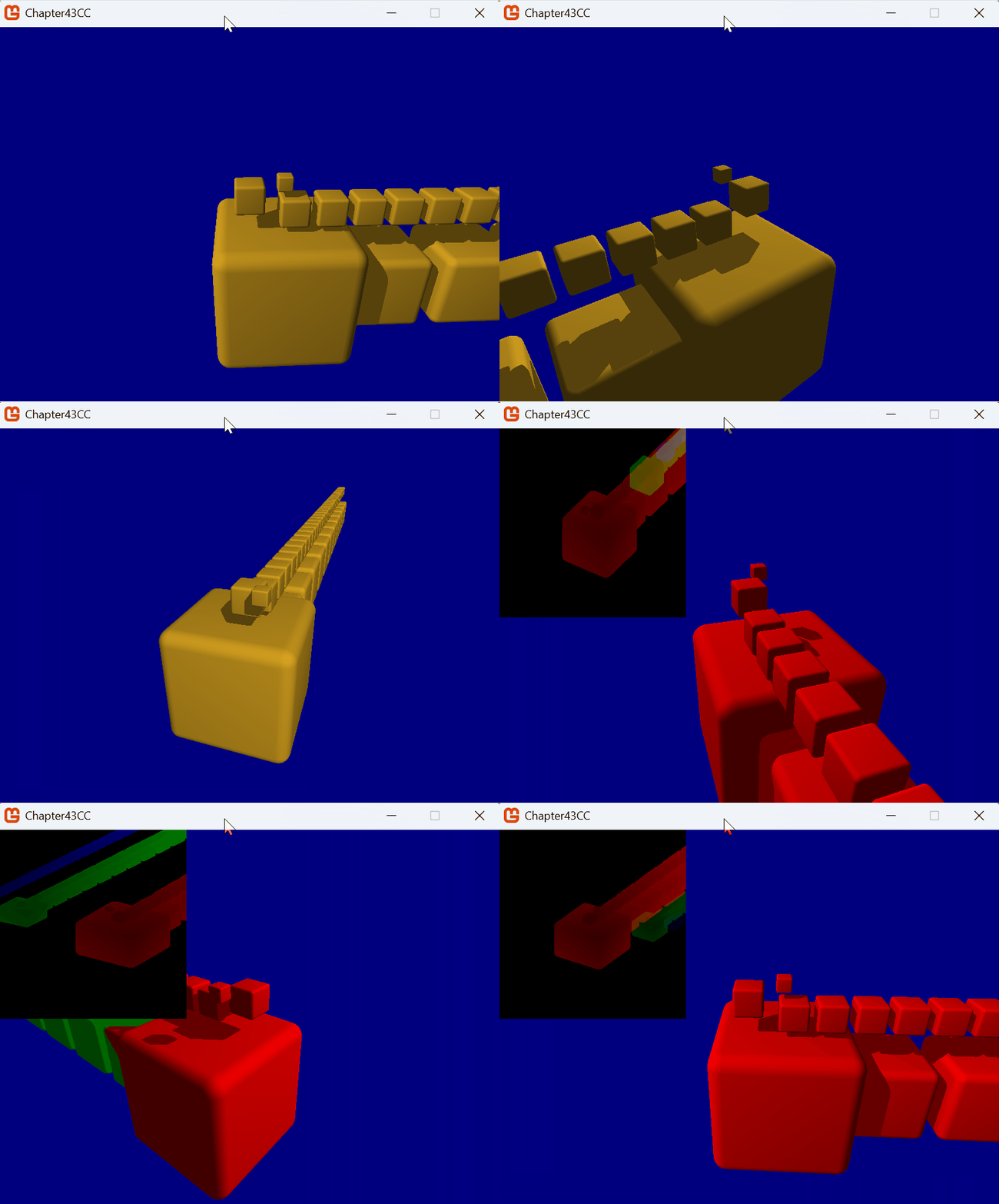
Do you need Cascades?
The answer to that question is basically: how big is your game world? Let’s get into detail of the problem and how that is solved:
The problem explained
In the basic shadowmapping technique, the world is viewed from the lights point of view. To capture the right section of the gameworld, the view-projection for the lightsource is calculated. The light’s frustum is calculated to capture the entire camera frustum. If the gameworld is quite small, the shadowmap can contain all pixels needed to calculate the shadows.
Once the world grows and the player can see things way in the distance, the shadowmap needs to grow to caputure everything. This results in a tradoff- either the resolution of the shadow is low (blocky shadows) or rendering of the shadowmap becomes resource heavy.
The solution
The compromise is to slice the camera’s frustum on sections: near, mid, far. This means we have detailed shadows nearby (similar to the single shadowmap) and low resolution shadows in the distance. The blockyness of distant shadows isn’t a big issue, as the shadows are smaller and less detailed.
In order to render our scene with this technique we take the following steps:
- Split the camera frustum into near, mid and far sections;
- Calculate the lights view and projections to encompass these camera splits;
- Render shadowmaps for each cascade;
- Render the finalscene, reading the right shadowmap depending on the distance of the fragment.
The code
The code is available in this repository, check the chapter43cc.sln. I tried to comment the code as much as possible so it should be self explanatory. The sections below highlight some of the code.
In many cases the data for near, middle and far is stored in a array- where 0 represents near, 1 represents middle, 2 represents far.
The shadowmap texture
In the end we need three lookups, one for each cascade. One way of doing this is passing three shadowmap textures. This also means our diffuse effect needs to read from three textures.
To optimise this, it is possible to store three cascades by using the r,g and b values: the near cascade is stored in the red component, the middle in green and far in blue (if needed, you could add another cascade in the alpha channel).
Let’s make sure we define the shadowmap rendertarget to accept our color channels:
            // The rendertarget is RGBA so we can encode depth data in each color component.
            _shadowMapRenderTarget = new RenderTarget2D(GraphicsDevice, 4096, 4096, false, SurfaceFormat.Color, DepthFormat.Depth24);
Because each cascade is rendered, two things are needed between each cascade:
- The shader must only affect the color corresponding to the cascade, while leaving the other values unaffected.
- The depthmap must be reset- each cascade should render from a clean slate.
To affect only a specific color component, a special blendstate is defined, this is the red component only blendstate:
    _cascadeBlendState[0] = new BlendState()
    {
        ColorWriteChannels = ColorWriteChannels.Red,
        ColorSourceBlend = Blend.One,
        ColorDestinationBlend = Blend.Zero,
        ColorBlendFunction = BlendFunction.Add
    };
In the Draw() loop the depthmap is reset in this statement:
GraphicsDevice.Clear(ClearOptions.DepthBuffer, Color.Black, 1.0f, 0);
Finally in the shadowmap shader we add a uniform float Cascade to tell the pixelshader to output to the right channel:
float4 ShadowMapPS(ShadowMapVSOutput input) : COLOR
{
    // Depending on the Cascade a different color component is used:
    if(Cascade == 0)
        return float4(input.Depth, 0, 0, 0);
    if (Cascade == 1)
        return float4(0, input.Depth, 0, 0);
    if (Cascade == 2)
        return float4(0, 0, input.Depth, 0);
    else
        return float4(0, 0, 0, 0);
}
Splitting the view frustum
First we define how to split the near, mid and far sections:
    // based on the near and far plane, the cascade splits are calculated.
    float planeDistance = farPlane - nearPlane;
    _splits = new float[] { nearPlane, nearPlane+ (planeDistance * 0.2f) , nearPlane + (planeDistance * 0.5f), farPlane };
The shader doesn’t accept a float[]- good thing is we can expose the same information as a Vector4.
In the Camera class the Matrices are calculated when the camera moves.
Since we don’t need to update this information when the camera is stationary, the camera’s cascade splits are stored in a Matrix array:
        private void CalculateMatrices()
        {
            _view = Matrix.CreateLookAt(_position, _target, Vector3.Up);
            float aspect = (float)_screenWidth / (float)_screenHeight;
            _projection = Matrix.CreatePerspectiveFieldOfView(_fieldOfView, aspect, nearPlane, farPlane);

            CascadeProjection[0] = Matrix.CreatePerspectiveFieldOfView(_fieldOfView, aspect, nearPlane, _splits[1]);
            CascadeProjection[1] = Matrix.CreatePerspectiveFieldOfView(_fieldOfView, aspect, _splits[1], _splits[2]);
            CascadeProjection[2] = Matrix.CreatePerspectiveFieldOfView(_fieldOfView, aspect, _splits[2], farPlane);
        }
In the previous implementation the light matrix code already had the camera view and projection as inputs- so we can easily calculate the lightViewProjection for each cascade when drawing. We don’t need to change this code. The purpose is to calculate the frustum that encloses the entire camera frustum, based on that projection. So in the ShadowCastingLight class, this method still works for our purpose.
        public Matrix CalculateMatrix(Matrix cameraView, Matrix cameraProjection)
        {
            // ...
        }
Drawing the shadowmap
The shadowmap draws the scene for each cascade. The code is fairly simple, we clear the rendertarget and set the blendstate to our custom version to handle each component. Remember, the index corresponds to 0=near, 1=mid and 2=far. Also the number of cubes is increased to demonstrate the distant drawing (take a look at the example code for details).
        protected override void Draw(GameTime gameTime)
        {
            // Switch to our shadowmap render target so we can render from the lightsource viewpoint:
            GraphicsDevice.SetRenderTarget(_shadowMapRenderTarget);
            GraphicsDevice.Clear(Color.Black);
            // The scene is rendered as normal, with the shadowmap effect:
            for (int cascade = 0; cascade < 3; cascade++)
            {
                // For each cascade we need to clear the depth buffer-
                // we are going to render the entire scene anew for each cascade
                // so we must have a depth buffer during the casecase but
                // not carry it over to the next.
                GraphicsDevice.Clear(ClearOptions.DepthBuffer, Color.Black, 1.0f, 0);
                GraphicsDevice.DepthStencilState = DepthStencilState.Default;

                // We have a blendstate for each cascade because we only want to affect the
                // the colors that are in that particular cascase
                // Red for near, Green for mid and Blue for far distances.
                GraphicsDevice.BlendState = Light.CascadeBlendState(cascade);

                Matrix cascadeViewProjection = Light.CalculateMatrix(Camera.View, Camera.CascadeProjection[cascade]);

                // Set the view projection uniform in our shader, and tell the shader what cascade we're rendering.
                Shaders.ShadowMapEffect.Parameters["ViewProjection"].SetValue(cascadeViewProjection);
                Shaders.ShadowMapEffect.Parameters["Cascade"].SetValue(cascade);

                // Render all cubes for this cascade.
                for (int i = 0; i < 59; i++)
                {
                    cubeObjects[i].Draw(Shaders.ShadowMapEffect);
                }
            }

            // ...
        }
Drawing the shaded scene
The updated shader
The diffuse shader needs a few things to work, first it must know where the splits are- this way the shader can pick the right cascade. Also the shader must know what the lightViewProjections are- this is needed to cross reference the real pixel with the shadowmap pixel.
As mentioned before, the shader doesn’t accept float[] for our splits, so we pass the information as a Vector4 instead. Lucky for us, it does accept Matrix[], which means we can pass our lightViewProjection matrices in one parameter.
In the pixelshader we determine the right cascade, and the rest of the calculations are very much the same- except we pick the right cascade for the calculation (have a look at the sample sourcecode for the full shader):
float4 CascadeSplits;
matrix LightViewProjection[3];

float4 MainPS(VertexShaderOutput input) : COLOR
{
    //Very simple shading based on the shadow strength.
    float4 diffuse = DiffuseColor;
    float diffuseIntensity = clamp(dot(input.Normal.xyz, LightDirection.xyz), 0, 1);

    // Shadowmap section

    // Find the right cascade, based on the distance from the camera.
    float cascadeIndex = 0;
    if (input.CascadePosition.z > CascadeSplits[0] && input.CascadePosition.z <= CascadeSplits[1])
    {
        cascadeIndex = 0;
    }
    else if (input.CascadePosition.z > CascadeSplits[1] && input.CascadePosition.z <= CascadeSplits[2])
    {
        cascadeIndex = 1;
    }
    else if (input.CascadePosition.z > CascadeSplits[2] && input.CascadePosition.z <= CascadeSplits[3])
    {
        cascadeIndex = 2;
    }


    // Find the position of this pixel in light space in the projection
    float4 lightingPosition = mul(input.Position3D, LightViewProjection[cascadeIndex]);

    // Find the position in the shadow map for this pixel
    float2 ShadowTexCoord = 0.5 * lightingPosition.xy /
            lightingPosition.w + float2(0.5, 0.5);

    // Rendering y coordinate needs flipping
    // sampling and rendering from a different y direction.
    ShadowTexCoord.y = 1.0f - ShadowTexCoord.y;

    // Get the current depth stored in the shadow map (red component for close, green for mid, blue for distant)
    float shadowdepth = tex2D(shadowSampler, ShadowTexCoord)[cascadeIndex];

    // Calculate the current pixel depth
    // The bias is used to prevent floating point errors that occur when
    // the pixel of the occluder is being drawn
    float ourdepth = (lightingPosition.z / lightingPosition.w) - DepthBias;

    float shadowIntensity = 1; //1 means no shadow
    // Check to see if this pixel is in front or behind the value in the shadow map
    if (shadowdepth < ourdepth)
    {
        // Set a shadow value for this pixel.
        // Intentionally a bit brighter than absolutely dark, it gives a
        // better visual effect when combined with the other simple shading.
        shadowIntensity = 0.2;
    }

    // Shade the final pixel. It combines the simple shading and shadow shading and picks whichever is darkest.
    diffuse *= ShadowStrength + (1 - ShadowStrength) * min(diffuseIntensity, shadowIntensity);
    return diffuse;
}
Draw the final scene
The final Draw() section is no more spectacular than before:
            // Now to render the final scene with cascade shadow effect
            // Switch back to the backbuffer
            GraphicsDevice.SetRenderTarget(null);
            GraphicsDevice.Clear(Color.Navy);
            GraphicsDevice.BlendState = BlendState.Opaque;

            // Rendere everything with the normal diffuse effect
            for (int i = 0; i < 59; i++)
            {
                cubeObjects[i].Draw(Shaders.DiffuseEffect);
            }
That’s it! Study the full sourcecode to have a bit of an idea of the set up.
When running the code, press Left Alt and Left Shift to toggle the debug mode, where the splits and shadowmap are visualised.
Notes
The code demonstrates the concept. There are several optimisations that could be made such as:
- Some matrices are still calculated during draw or update passes even when no parameters of influence change. Consider only doing calculations when needed and only do it once and store the results.
- Culling of objects- since the same scene is drawn multiple times, it is smart to cull objects that are not in that specific cascade.
- Hardware instancing- again to decrease the number of drawcalls, hardware instancing could be leveraged to speed things up (read how to do hardware instancing here!)
- Due to the custom
BlendStatesit is possible to write the depth data to all channels- the blendstate will control what part of the shadowmap is affects. This is minor, so for readability I left it like this. - Changing uniforms via the `Parameter[].SetValue()’ method can be simplified by creating variables that bind directly to the specific parameter. I didn’t do this for the tutorial because it would create another layer- and this demonstrates directly what uniform in the shader is affected.