MonogameTetrisTutorial
GPU Hardware Instancing
Hardware instancing is a graphics rendering technique used to efficiently draw multiple instances of the same object with slight variations (such as position, and color) in a single draw call to the GPU. Instead of sending redundant geometry data for each instance, only the base object data and instance-specific parameters are transmitted. The GPU then replicates the base geometry using the per-instance data to render the scene.
This approach minimizes CPU-GPU communication overhead, boosts performance, and is especially useful in scenarios like rendering forests, crowds, or particle systems where many similar objects need to be displayed.
In our Tetris example, our main object is a cube, which has different positions and colors. So effectively all our cubes could be drawn in one single Draw action, enormously cutting down on overhead. While our game probably can cope with the limited amount of cubes being drawn, it is an excellent exercise of how to apply this technique.
Basic principles
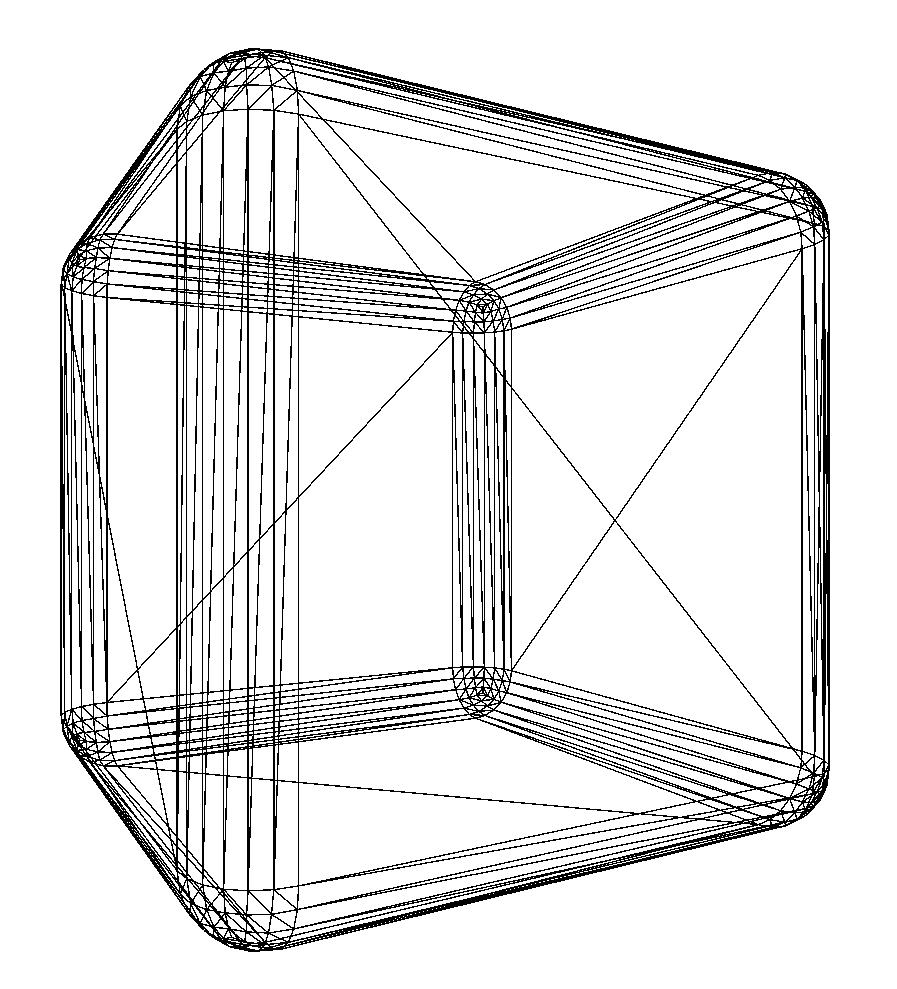
The way Monogame draws models, is by sending all model data and the parameters such as positioning data to the GPU. So let’s assume our basic cube model consists of 288 vertices, each with position, normal and texture coordinates- in total 9 KB of data for one mesh.
Not a lot, but let’s draw 1,000 cubes:
- 1,000 times the vertexdata of 9 KB = ~9.21 MB
- 1,000 times position data (64 bytes) ~ 64 KB
Total ~9.28 MB and 1,000 drawcalls.
In the current state of videocards, this is still very little. However it does illustrate the massive difference if we were to use hardware instancing. In that case we only send the vertex data once (it is the same for every object we draw) and send the instance data:
- 1 time the vertexdata of 9 KB
- 1,000 times the position data of ~64 KB
Total 73 KB (or 0.071 MB) In other words, we save 99% of data and 999 drawcalls! Imagine how much you would save if your object had thousands of vertices!
Instancing
Monogame doesn’t do instancing out of the box- it does have the basic tools in the toolbox to do it though. So what do we need:
- a vertexbuffer that contains the mesh data of the object we want to instance.
- a datastructure that holds our instance specific data, in such format the GPU can understand.
- a shader that can process the data.
- a way to ‘batch’ all the cubes we want to draw.
In essence the process is similar to the way the spriteBatchworks. You open the batch by Begin(), draw your sprites and End() the batch- which tells Monogame to send everything to the GPU. So the drawing process looks like this:
- Prepare: Read the model into a vertex buffer
- Prepare data structures
- Reset the instance data (similar to
spriteBatch.Begin()) - Set all cube drawing data (similar to
spriteBatch.Draw()) - Send all cube data to the GPU (similar to
spriteBatch.End()) - Back to 3 for the next frame!
Let’s have a look at each component…
The cube model buffers
This example uses the cube object as our test subject. The Monogame Model class holds the information we need, but we cannot use it in the instancing method. So we need to extract the vertex data and put it in our own vertex buffer.
A VertexBuffer is a data structure that a GPU can understand- a vertex is datapoint that is part of the object and holds information such as position, normal-vectors, color and texture coordinates of a point in 3D space. The IndexBuffer is a datastructure that tells the GPU what vertices form a triangle that the GPU can draw. Finally we need the count the number of triangles so we can tell the GPU how many datapoints it can expect (so we will need this later for our drawcall).
The following code extracts the vertex data of our cube into the buffers we will need later. Note that the cube object has only one Model.Mesh and only one Mesh.MeshPart, so adapt the code accordingly to get the right data.
        private VertexBuffer cubeVertexBuffer = null;
        private IndexBuffer cubeIndexBuffer = null;
        private int primitivecount;

        /// ...

        public override void LoadContent()
        {
            /// ...

            Cube = content.Load<Model>("cube");

            //extract the vertexdata for instanced cube drawing
            foreach (var mesh in Cube.Meshes)
            {
                foreach (var part in mesh.MeshParts)
                {
                    cubeVertexBuffer = part.VertexBuffer;
                    cubeIndexBuffer = part.IndexBuffer;
                    primitivecount = part.PrimitiveCount;

                    break; // The cube is one mesh with one part so the first mesh is the one we need.
                }
            }

            // ...
        }
The instance data buffer
Next is we need to tell the GPU what instanced data it can expect. For our example we want to draw cubes in different positions, orientation and scale- in other words our world matrix. We also want to control each the Color for each cube.
Our world data could be summarized into one Matrix datatype next to our Color datatype.
So we need to define a structure that contains these datatypes. This datatype to tell the GPU what to expect is called a VertexDeclaration. Monogame has a couple of predefined of these declarations but we can also define one of our own.
The complexity is that you need to know what the size of each data component is (the “stride”). This information is used by the GPU to decode the datastructure.
We need to send a Matrix and a Color to the GPU for each instance. Now, a Matrix doesn’t exist- but it can be reconstructed by 4 rows of 4 floats:
A 4x4 Matrix:
{
    M11, M12, M13, M14,
    M21, M22, M23, M24,
    M31, M32, M33, M34,
    M41, M42, M43, M44
}
…also 4 floats can be represented by a Vector4(x, y, z, w). To calculate the stride, a float is 4 bytes; so a Vector4 is 16 bytes. We will classify the data as Position data in our declaration.
To summarize: we declare a matrix as 4 Vector4 elements, one for each row. Each row has a size of 16 bytes.
This produces the following declaration for a Matrix and Color component:
            VertexDeclaration instanceVertexDeclaration = new VertexDeclaration(
                new VertexElement(0, VertexElementFormat.Vector4, VertexElementUsage.Position, 1), // Row 0
                new VertexElement(16, VertexElementFormat.Vector4, VertexElementUsage.Position, 2), // Row 1
                new VertexElement(32, VertexElementFormat.Vector4, VertexElementUsage.Position, 3), // Row 2
                new VertexElement(48, VertexElementFormat.Vector4, VertexElementUsage.Position, 4),  // Row 3
                new VertexElement(64 , VertexElementFormat.Vector4, VertexElementUsage.Color,0)
            );
Note how each new piece of the declaration increase by the 16 bytes needed for the previous row. Basically row 3 starts 48 bytes from the start.
This is the datastructure for each cube instance on the GPU. Now it is important that our data structure matches what we’re doing. So let’s create a struct with the same stride:
    internal struct CubeInstanceData
    {
        public Matrix World; //float4x4
        public Vector4 CustomColor; // RGBA color
    }
Now we need something to store this data in so we can transport it to the GPU. For this we’re going to use a DynamicVertexBuffer- it tells Monogame and the GPU that this is a buffer optimised for writing, as we are going to rewrite the data every frame (in each frame the data can be different).
We also need to reserve space in the buffer- for now let’s reserve space for 1500 cubes. You could create a dynamic list, but for this example let’s stick to this.
        private DynamicVertexBuffer _instanceBuffer;
        private CubeInstanceData[] _instanceData = new CubeInstanceData[1500]; //reserve some space

        public override void LoadContent()
        {
            /// ...

            _instanceBuffer = new DynamicVertexBuffer(GraphicsDevice, instanceVertexDeclaration, _instanceData.Length, BufferUsage.WriteOnly);

            /// ...
        }
The Shader
The shader is the basic shader with a few changes. The major change is the Vertex shader- this is the entry point for the shader that accepts the data from the instance data:
VertexShaderOutput MainVS(VertexShaderInput input,
float4 WorldRow1 : POSITION1, float4 WorldRow2 : POSITION2, float4 WorldRow3 : POSITION3, float4 WorldRow4 : POSITION4,
float4 CustomColor : COLOR0)
{
    // We received our regular model data via VertexShaderInput input,
    // the additional instance parameters are in WorldRow1-4 and CustomColor.

    // Let's construct the Matrix:
    float4x4 InstanceWorld = float4x4(WorldRow1, WorldRow2, WorldRow3, WorldRow4);

    // ...
}
The shader now processes each triangle as it did before- but now it does so once for each instance! We can do the same calculations we used to do for a single cube, except we now use the InstanceWorld variable. Since our pixel shader needs the CustomColor parameter, let’s add this one in our output.
struct VertexShaderOutput
{
    float4 Position : SV_POSITION;
    float3 Normal : NORMAL0;
    float3 WorldNormal : NORMAL1;
    float2 TexCoord : TEXCOORD0;
    float3 WorldPos : TEXCOORD1;
    float4 CustomColor : TEXCOORD2; //Added this!
};
In our Vertex shader we add this datapoint:
output.CustomColor = CustomColor;
So this means our Pixel Shader has access to this bit of information for further processing.
float4 MainPS(VertexShaderOutput input) : COLOR
{
    // ...

    return input.CustomColor * (DiffuseColor * intensity);
}
The Drawing process
Next I’ll show a a drawing procedure that is similar to how spriteBatch works. There are many ways to do it and the moving parts are similar- but I like this method because it keeps the way I like to structure my game the same.
We start a new session to collect all data, accept drawing of an instance and once the session is closed we send everything over to the GPU.
Starting the drawing is easy- let’s introduce a mechanism to ensure we are calling things in the right order. This will save us some headache when debugging everything.
        private bool _beginCalled=false;

        public void BeginCubeInstance()
        {
            if (_beginCalled)
                throw new InvalidOperationException("Begin cannot be called without Ending the previous Instanced Draw session.");

            instanceCount = 0;
            _beginCalled = true;
        }
See? Simple- the counter is reset to zero so we can start counting the number of cubes we’re going to draw this frame. We check if we didn’t already call the begin method.
Next up, drawing. Also very simple, as we only need to collect the instance specific data.
        public void DrawInstancedCube(Matrix world, Color color)
        {
            if (!_beginCalled)
                throw new InvalidOperationException("BeginCubeInstance must be called first.");

            _instanceData[_instanceCount].World = world;
            _instanceData[_instanceCount].CustomColor = color.ToVector4();
            _instanceCount++;
        }
We now have the ability to draw our instanced cube- but in reality we aren’t drawing anything here- we collecting data until we end our session and draw all cubes at once.
This is what actually happens when the session ends and we draw everything, I’ve added comments to indicate what each line does:
        public void EndCubeInstance()
        {
            if (!_beginCalled)
                throw new InvalidOperationException("BeginCubeInstance must be called first.");

            // Update the instance buffer with the data:
            _instanceBuffer.SetData(_instanceData);

            // Bind the buffers to the GraphicsDevice, first the mesh, next the instance data.
            GraphicsDevice.SetVertexBuffers(
                new VertexBufferBinding(_cubeVertexBuffer, 0, 0),
                new VertexBufferBinding(_instanceBuffer, 0, 1)
            );

            //Tell the GraphicsDevice what indices describe the triangles in the vertexbuffer.
            GraphicsDevice.Indices = _cubeIndexBuffer;

            //Use the instanced cube drawing shader:
            _cubeInstanceEffect.Techniques[0].Passes[0].Apply();

            //This is the single draw call to draw everything!
            GraphicsDevice.DrawInstancedPrimitives(
                PrimitiveType.TriangleList,
                0, // baseVertex, we begin at the first (zero-based) vertex.
                0, // startIndex, we begin also at the first (zero-based) datapoint.
                _primitivecount, // how many triangles does the mesh have?
                _instanceCount // Only draw the intances we've actually set.
            );

            //We're done! Reset the session!
            _beginCalled = false;
        }
Putting it together
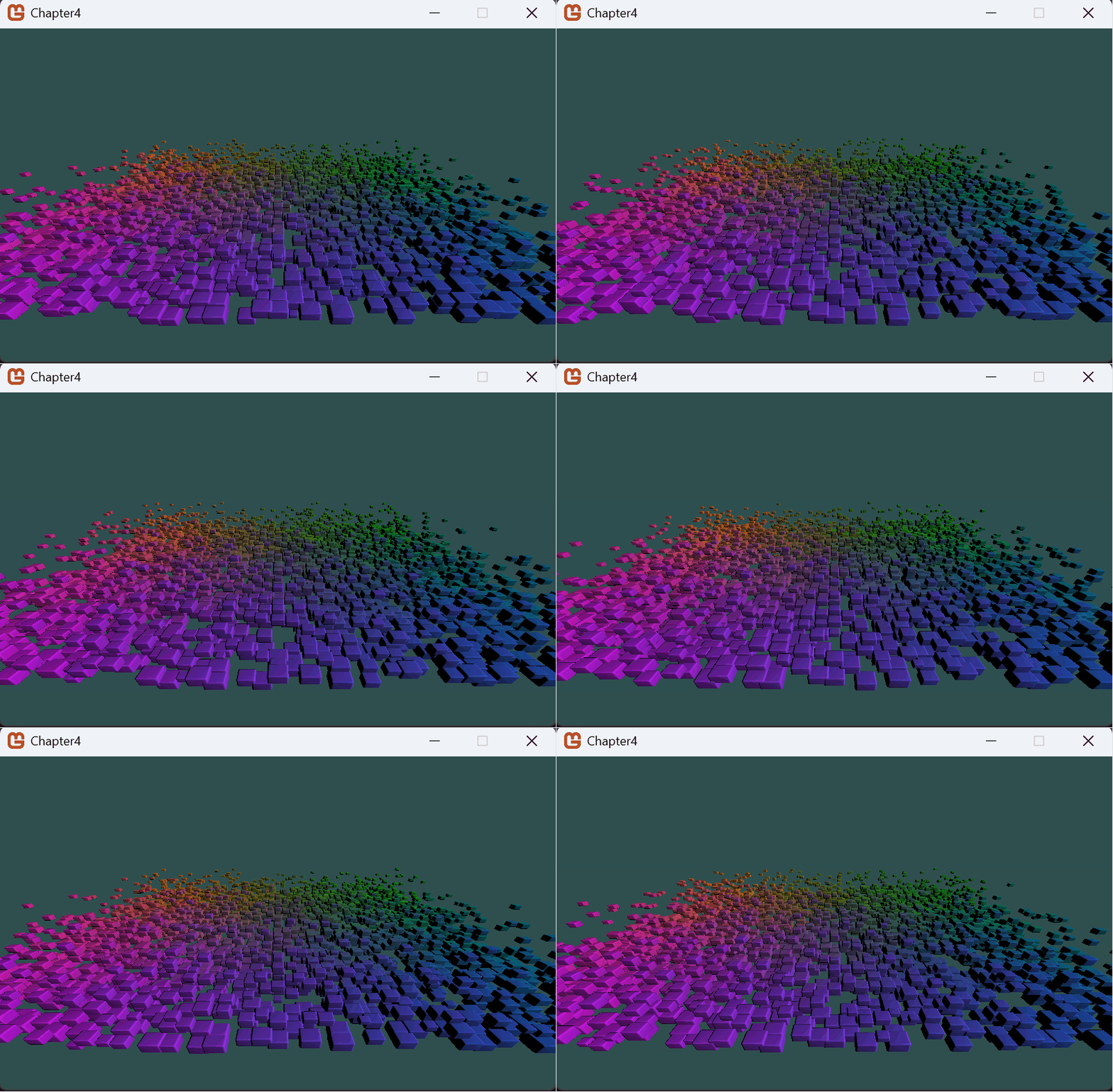
Have a look at the sample project. I have made a class that does the instanced drawing. In order to mimic a game structure, cubeObjects are made that Update() and Draw() each gameloop. All cubes are drawn with just a single draw call.
The code should produce 2,500 bouncing cubes as result: