MonogameTetrisTutorial
Finishing Touches
We almost have a complete game of Tetris! Only a few things left to do…
Increase the difficulty
At the moment, nothing is happening when lines are completed. Time to ramp up the challenge!
The level directly corresponds to the number of lines completed- that is, it cannot be lower than the number of lines divided by ten. I have also created a event for this, because a gameplay scene might want to know about this (for example, perhaps you want a gameplay mode to progress as quick as possible trough levels).
A class is added for the event arguments:
    public class LinesClearedEventArgs : EventArgs
    {
        public int NumberOfClearedLines;
    }
The actual level check and event in the Player class:
    public event EventHandler<LevelIncreasedEventArgs> LevelIncreasedEvent;

    // ...

    private void CheckLevel(int lines)
    {
        int lvl = (lines / 10) + 1; // there is no level 0, so we +1 for this.

        if (lvl <= Level)
            return; // we're at the same or higher level.

        // Level should increase!
        Level = lvl;

        // update settings that depend on the level:
        _dropSpeed = CalculateDropSpeed(Level); // what is the timing for the current level?
        _dropTimer = _dropSpeed; // set the starting value.

        // notify others something interesting has happened:
        RaiseLevelIncreasedEvent(new LevelIncreasedEventArgs() { Level = lvl });
    }

    protected virtual void RaiseLevelIncreasedEvent(LevelIncreasedEventArgs e)
    {
        EventHandler<LevelIncreasedEventArgs> handler = LevelIncreasedEvent;
        if (handler != null)
        {
            handler(this, e);
        }
    }
When the player completes lines, we check if the difficulty must be raised:
    public int Lines = 0; // To track the number of lines this player has completed

    private void PlayfieldLinesClearedCompleteEvent(object sender, LinesClearedEventArgs e)
    {
        _state = PlayerStates.Playing; // the player can enjoy playing again!

        // Lines were completed so increase the count and check if the difficulty must be increased:
        Lines += e.NumberOfClearedLines;
        CheckLevel(Lines);
    }
So why do we keep track of the level in the Player? Because if there are multiple players in a versus- each can be in their own difficulty (perhaps one player is ahead- or the other player is given a handicap to give a new gamer a better chance!)
If you run the game, the difficulty should increase automatically. The difficulty icreases slowly, so let’s add an indicator to the game- so you can see what level you’re in.
First- add a spritefont. I’m going to skip this part for this tutorial. The Monogame documentation on how to do it is here, if you are unsure. Otherwise, have a look at the sourcecode in this repository. I try to keep my assets in a static class so it is easy retrievable everywhere.
The MarathonGame class can be updated like so:
    internal class MarathonGame : IScene
    {

        private Player _player;
        private Playfield _playfield;

        private int _level, _lines;

        public MarathonGame()
        {
            // The playfield's origin is topleft:
            // The playfield is 2 units wide and 4 units high; so -1,2,0 puts the playfield in the center of our view.
            _playfield = new Playfield(new Vector3(-1f, 2f, 0));

            // Create a player and assing the playfield object:
            _player = new Player(_playfield);

            // Notify me when the level increases:
            _level = _player.Level;
            _lines = _player.Lines;

            // We're interested in these events, when does the level increase?
            _player.LevelIncreasedEvent += PlayerLevelIncreasedEvent;
            // Does the player score lines?
            _playfield.LinesClearedCompleteEvent += PlayfieldLinesClearedCompleteEvent;
        }

        private void PlayfieldLinesClearedCompleteEvent(object sender, LinesClearedEventArgs e)
        {
            _lines += e.NumberOfClearedLines;
        }

        private void PlayerLevelIncreasedEvent(object sender, LevelIncreasedEventArgs e)
        {
            _level=e.Level;
        }

        public void Update(GameTime gameTime)
        {
            _player.Update(gameTime);
        }


        public void Draw(SpriteBatch spriteBatch, GameTime gameTime)
        {

            _player.Draw();

            spriteBatch.Begin();
            spriteBatch.DrawString(Art.GameFont,string.Format("Level: {0}", _level.ToString("00")), new Vector2(100,100),Color.White);
            spriteBatch.DrawString(Art.GameFont, string.Format("Lines: {0}", _lines.ToString("000")), new Vector2(100, 135), Color.White);
            spriteBatch.End();
        }
    }
Sidenote: the spriteBatch doesn’t play nice with drawing 3D. So in the GameRoot update the Draw() like this:
    protected override void Draw(GameTime gameTime)
    {
        GraphicsDevice.Clear(Color.Black);

        GraphicsDevice.BlendState = BlendState.Opaque;
        GraphicsDevice.DepthStencilState = DepthStencilState.Default;
        GraphicsDevice.RasterizerState = RasterizerState.CullCounterClockwise;

        SceneManager.Draw(_spriteBatch, gameTime);

        base.Draw(gameTime);
    }
Anyway, run the code and enjoy the increased difficulty!
Score
Playing Tetris can be a zen-like experience, however it can still be a competitive game! Various game modes exist where the goal is to score as many points as possible.
Tetris scoring rules for the basic game is quite simple[^1]: [^1]: There are bonus points for difficult manouvres such as T-spins, perfect clears and combos. Implementation of these is left as a excercise to the reader! ;-)
| Action | Points |
|---|---|
| Single | 100 × level |
| Double | 300 × level |
| Triple | 500 × level |
| Tetris | 800 × level |
| Softdrop | 1 per cell |
| Harddrop | 2 per cell |
So let’s add these rules, in the PlayfieldLinesClearedCompleteEvent:
    private void PlayfieldLinesClearedCompleteEvent(object sender, LinesClearedEventArgs e)
    {
        _state = PlayerStates.Playing; // the player can enjoy playing again!

        // Score is based on what the level _was_ before the lines were added.
        switch (e.NumberOfClearedLines)
        {
            case 1:
                AwardScore(100 * Level);
                break;
            case 2:
                AwardScore(300 * Level);
                break;
            case 3:
                AwardScore(500 * Level);
                break;
            case 4:
                AwardScore(800 * Level);
                break;
        }

        // Lines were completed so increase the count and check if the difficulty must be increased:
        Lines += e.NumberOfClearedLines;

        CheckLevel(Lines);
    }
I added a separate (again event) for the scores in the AwardScore() method. This way a gameplay scene (like the MarathonGame class) can deal with the scores as well. Perhaps you want to have a character shout cool stuff if the player scores massive points.
    public event EventHandler<ScoreAwardedEventArgs> ScoreAwardedEvent;

    public void AwardScore(int value)
    {
        if(value==0)
            return; //prevent unneeded events. (hhey perhaps negative score is possible in your game!)

        Score += value;

        RaiseScoreAwardedEvent(new ScoreAwardedEventArgs() { Score = Score, Increment=value });
    }

    protected virtual void RaiseScoreAwardedEvent(ScoreAwardedEventArgs e)
    {
        EventHandler<ScoreAwardedEventArgs> handler = ScoreAwardedEvent;
        if (handler != null)
        {
            handler(this, e);
        }
    }
The ScoreAwardedEventArgs class:
    internal class ScoreAwardedEventArgs
    {
        public int Increment;
        public int Score;
    }
See if you can figure out how the hard and softdrop scores are awarded, and check the sourcecode of chapter 2 for the way I solved that.
Game Over Man!
Once the top of the grid is reached… nothing happens. That can’t be right!
The game is over if a piece cannot be placed. So let’s add this to the Player class:
    public void GameOver()
    {
        _state = PlayerStates.GameOver;
        RaiseGameOverEvent(new GameOverEventArgs() { Level = Level, Score = Score, Lines = Lines });
    }

    protected virtual void RaiseGameOverEvent(GameOverEventArgs e)
    {
        EventHandler<GameOverEventArgs> handler = GameOverEvent;
        if (handler != null)
        {
            handler(this, e);
        }
    }
We check the if the piece can be placed:
    private void HardDrop()
    {
        // lock the piece onto the playfield:
        if (!_playfield.LockInPlace(_currentPiece, _ghostX, _ghostY))
        {
            GameOver();
        }

        // ..
    }

    private void SoftlockPiece()
    {
        // lock the piece onto the playfield:
        if (!_playfield.LockInPlace(_currentPiece, _x, _y))
        {
            GameOver();
        }

        // ..
    }
The ghost piece
You probably have noticed that a misplaced drop can happen to anyone. It is easier to see where a piece ends up, if we would draw the ghost piece as well. Considering we have the _ghostX and _ghostY coordinates already, drawing the piece is trivial. Note that the BasicEffect has a parameter that sets the Alpha channel.
Set the GraphicsDevice in the GameRoot to:
GraphicsDevice.BlendState = BlendState.AlphaBlend;
Next add a DrawGhostTetrimino to the Playfield class where the alpha is controlled in the effect:
GameRoot.BasicEffect.Alpha = alpha;
If you put everything in this chapter together, you should be able to play the game like this!
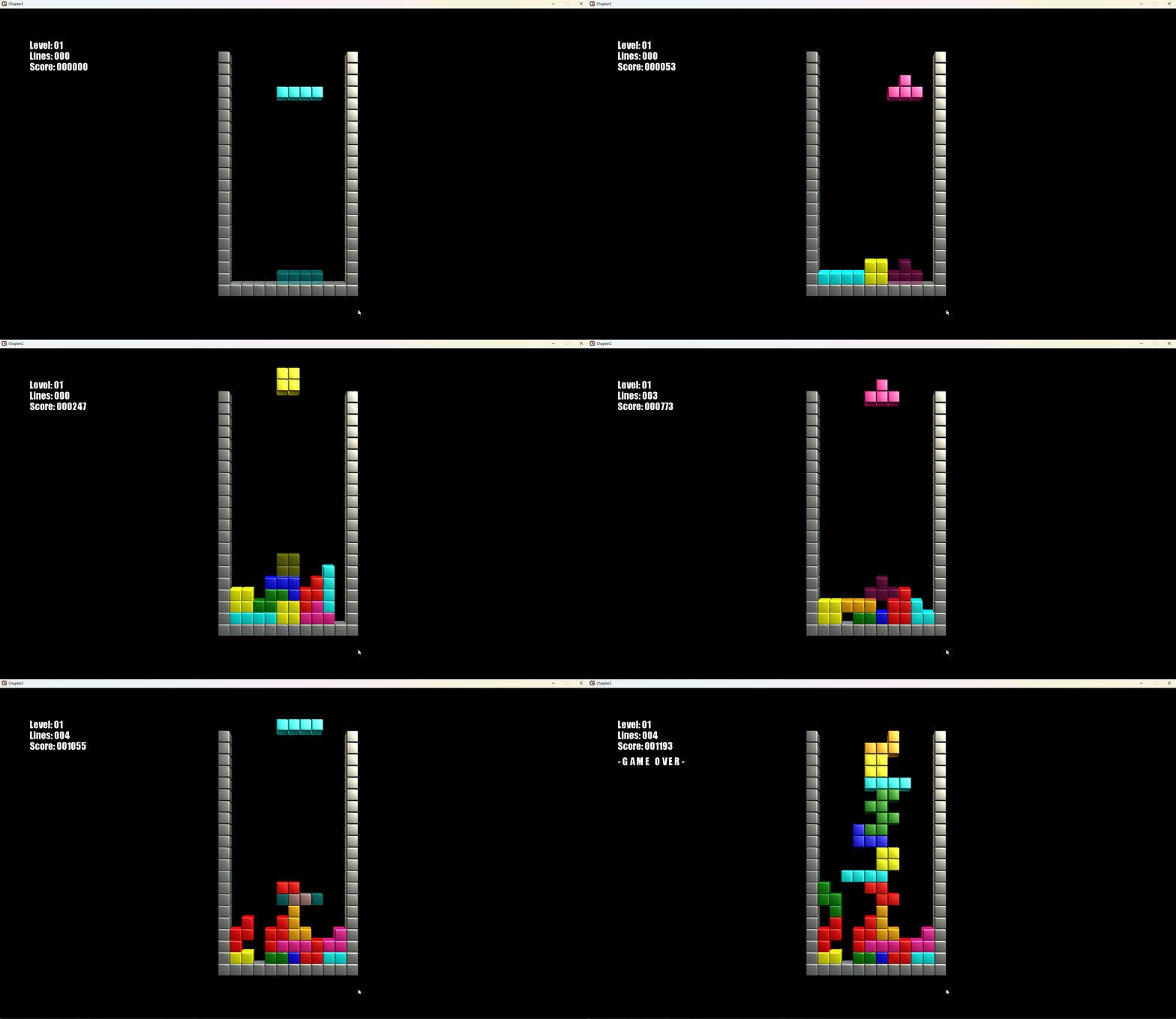
Check the sourcecode here.
If you are ready to dive into the rabbithole that is Tetris acronyms, I’ll cover some details in the next chapter soon!